How to Fix WordPress White Screen of Death
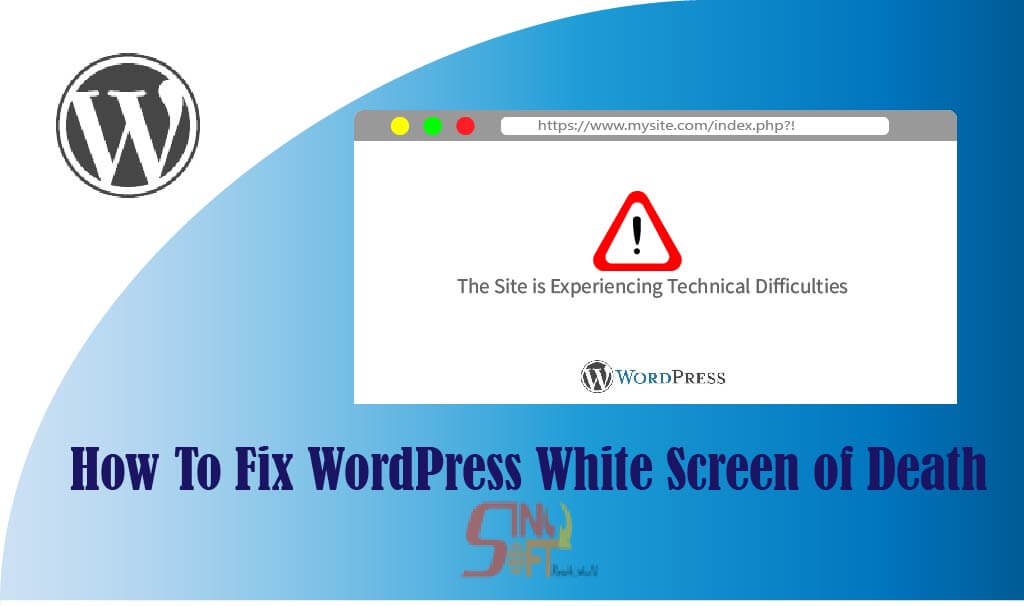
The WorPress white screen error is one of the most common, most frustrating WordPress error. Most of the time, there is no error message, and you’re locked out of your WordPress website. Also, the error can affect a certain part of your website like a single page or post, or admin area.
Here, we’re going to show how to fix the white screen error by looking at varied solutions.
Note: Before making any changes to your website, make sure you have a backup of your WordPress website. If you don’t, ask your hosting company as many have on demand plans for download, though this method is not an alternative to a proper backup solution. Alternatively, you can use phpMyAdmin to export the database for your WordPress website.
Note: Whether you see a blank screen, or the message, “There has been a critical error on your website”, it’s the same error.
A new fatal error protection feature introduced in WordPress 5.2 can sometimes catch the error and display the message of the site having technical difficulties and you may not see the white screen. You would also receive an email message on your admin email address with the subject, “Your Site is Having a Technical Issue”.

If you see the plain white screen with no email or recovery mode option, then you need to fix the error manually.
- Increase the Memory Limit
Most of the time, when a white screen appears, it means that a script on your website exhausted the memory limit hence the unresponsive script either gets killed by the hosting server, or it simply times out. This is why no actual error message is generated, and you see a plain white screen.
From the cPanel, gain access to your WordPress website’s root folder, and edit the wp-config.php file. Paste or write the code below before the line that says, ‘That’s all, stop editing! Happy blogging.’

The code above tells WordPress to increase the PHP memory limit to 256MB.
- Review Installed Plugins
The WordPress plugin directory is an open-source platform, any plugin developer can add their own. Poorly developed plugins can cause the white screen error.
The clearest indication that a plugin is causing a white screen error is if the screen is seen only from the visitor’s browsers. To fix this, clear the WordPress cache so as to show the newest version of the website.
Note: Make sure you only use one plugin for caching, as more can cause conflicts.
To review installed plugins, disable the plugin folder and refresh the website. If the issue occurs, the cause is elsewhere on the site. But if it fixes the WordPress white screen error, then it means there is a faulty plugin. Start by disabling, refreshing and enabling each one of them singly till a culprit is found.
Once the culprit is found, delete it in the WordPress admin dashboard or remove its folder form the File manager. If doing so fixes the website, try reinstalling the plugin or replacing it with a different one that offers similar functionality.
- Check Themes
An incompatible theme can also cause the white screen error. You can change it back to the default theme using phpMyAdmin > EnterphpMyAdmin, click on the wp_options table and change the values of template and stylesheet under the option_value column to forcibly disable the current theme and switch WordPress to the latest default theme.
Reload the website to see if the error persists. But if the method fixes the issue, use a different theme or delete and reinstall the corrupted one. Also, you can check the functions.php file for extra spaces at the bottom of the file, remove those, as that fixes the issue sometimes. You can consider, as an alternative, to download a fresh copy of your theme from its source and install it anew.
Note: To avoid this happening again, check whether the theme is suitable for your WordPress version. In addition, use a child theme for modification to avoid the white screen error issues again.
- Check WordPress Error Logs
If previous methods do not fix this white screen error issue, check your WordPress error log file. Turning on the WordPress debugging function will reveal where you encountered PHP errors.

Note: To enable debug mode, in the wp-config.php file within the public_html folder, add the line of code at end of file. Save, close and reload site. The result will be warnings, errors and notices being displayed of the reasons behind the white screen error.
If you don’t see the errors on display, the debug file can be accessed from the wp-content folder in the File Manager where you can open and see details of the error.

- Clear WordPress Cache
Sometimes, you may have access to the backend, but the front-end of the site has the white screen error. This can happen because of a caching plugin. Simply empty your cache.
The cache clearing can be done using plugins, or on the File Manager folder.

- Fix Longer Articles
One method used here is to increase their capability by increasing the recursion and back-track limit. The code below id pasted in the wp-config.php.

- Restore WordPress Site From a Backup
This is the last resort since the website might lose data in the process. A WordPress backup is a copy or duplicate version of your WordPress website. This can be stored either locally, on the cloud or on the hosting provider’s computers. The steps to restore a website using a backup depend on the web hosting provider.
A WordPress site consist of two items: the website files and the database. Website files refer to al WordPress files stored in the public_html main directory and include core files, themes, images, code files and static web pages.
The database stores site data not included in the site files such as posts, pages, and comment. As a result, always make a backup of the two files: website data and the database.
- WordPress website backup can be done using: manually through phpMyAdmin
- Using the cPanel
- Using plugins
Is this blog helpful?
0
0
Popular Posts

No Popular Posts Found
We're sorry what you were looking for. please try another way
Popular Categories
Tags
Related Articles
How to Disable Comments on WordPress
Enabling comments can be a great way to engage with your audience, but many users want to disable comments in WordPress for valid reasons. Having a comment section can pose security risks, and some sites simply don’t need one at all. Why Would You Want to Disable WordPress Comments Here are some reasons why you might want to disable comments in WordPress: 1. Spam In general, spam refers to any unwanted user-generated content.
Read Blog
Top Microfinance Institutions in Kenya
Microfinance institutions in Kenya play a vital role in providing savings and credit facilities to Kenyans without access to traditional banking. Many people rely on local chamas and merry-go-rounds, with dormant bank accounts common among those who have them. This limits their ability to secure loans for personal or developmental projects. Microfinance bridges this gap by off
Read Blog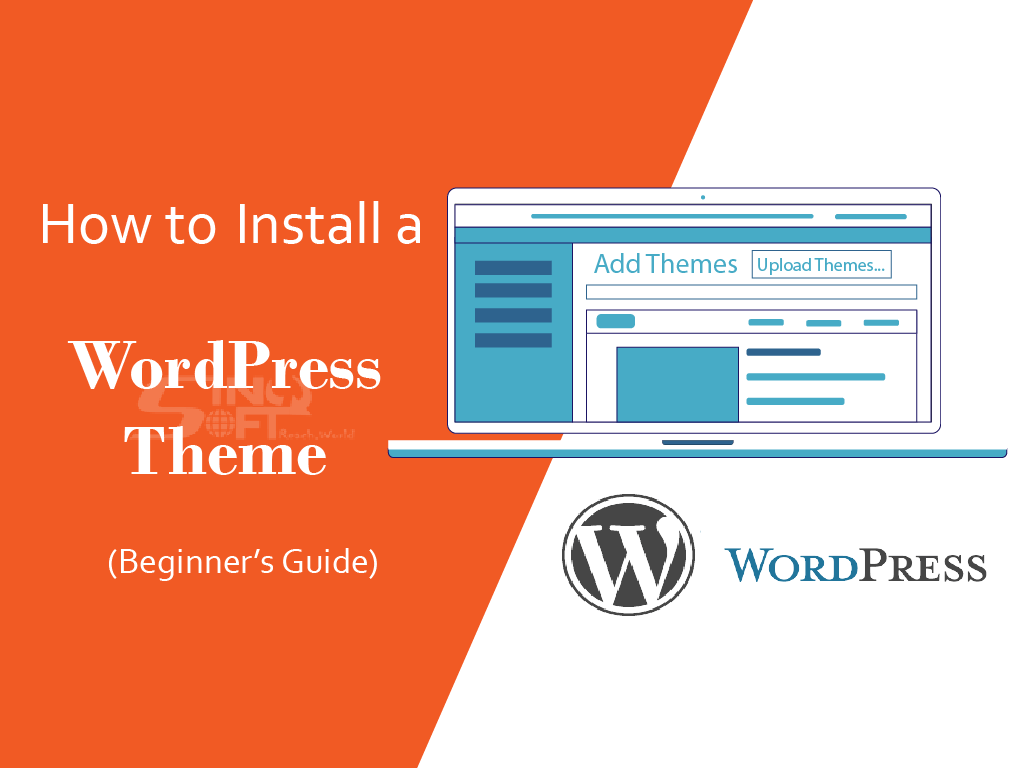
How To Install a WordPress Theme
There are a couple of options on how to install a WordPress theme for your website: Download a zipped theme from the Internet onto your local computer, then upload it via the WordPress Dashboard.Search for a theme via the WordPress Dashboard Themes section. Install Theme via WordPress Dashboard WordPress allows you to search for themes based on specific keywords and features. To begin searching from your WordPress D
Read Blog