Import bookmarks & settings across browsers

Import bookmarks & settings across browsers very easily, either from Mozilla to Chrome to Internet Explorer to Opera Mini and vice versa.
You can switch browsers without losing your settings and all the bookmarks for your favorite websites. Depending on the browser you used, your settings can include the following info:
- browsing history
- default homepage
- bookmarks
- default search engines
- saved passwords
Add bookmarks to Chrome
To import bookmarks from most browsers, like Firefox, Internet Explorer, and Safari:
- On your computer, open Chrome.
- At the top right, click More
 .
- Select Bookmarks
 Import Bookmarks and Settings.
- Select the program that contains the bookmarks you’d like to import.
- Click Import.
- Click Done.
From the Google Toolbar on Internet Explorer
- Open Chrome.
- Go to google.com/bookmarks.
- Sign in with the same Google Account you used with Google Toolbar.
- On the left, click Export bookmarks. Your bookmarks will download to your computer as an HTML file.
- At the top right, click More using the 3 dotted vertical menu.
- Select Bookmarks Import Bookmarks and Settings.
- From the drop-down menu, select Bookmarks HTML file.
- Select Choose File.
From all other browsers
- On your computer, export your bookmarks from the browser as an HTML file.
- Open Chrome.
- At the top right, click More 3 dotted vertical menu.
- Select Bookmarks Import Bookmarks and Settings.
- From the drop-down menu, select Bookmarks HTML file.
- Select Choose File.
If you haven’t created any bookmarks in Chrome, the bookmarks show up in the bookmarks bar.
If you already have bookmarks in Chrome, the bookmarks are in a new folder labeled “Imported.”
On a Chromebook
- Open Chrome.
- At the top right, click More 3 dotted vertical menu.
- Select Bookmarks Bookmark manager.
- At the top left, click Organize.
- From the drop-down menu, select Import Bookmarks from HTML file.
- Upload the saved HTML.
Open your bookmarks
- At the top right, click More 3 dotted vertical menu Bookmarks.
- If you already had bookmarks in Chrome, look for a new folder named “Other bookmarks.”
Get bookmarks on all your devices
Turn sync on in Chrome with the same Google Account on all your devices. By default, your bookmarks will sync on all of them.
How bookmarks are imported
If you didn’t have any bookmarks in Chrome, the imported bookmarks appear in the bookmarks bar.
If you already had bookmarks in Chrome, the imported bookmarks are added to the “Other bookmarks” folder at the end of the bookmarks bar.
Move bookmarks to another browser
If you decide to use a different browser, you can take all your Chrome bookmarks with you.
- On your computer, open Chrome.
- At the top right, click More 3 dotted vertical menu.
- Select Bookmarks Bookmark Manager.
- At the top, click More 3 dotted vertical menu Export Bookmarks.
Chrome exports your bookmarks as an HTML file. Use this file to import your bookmarks into another browser. Give feedback about this article by commenting below, also visit our blog for more interesting articles.
Is this blog helpful?
0
0
Popular Posts

No Popular Posts Found
We're sorry what you were looking for. please try another way
Popular Categories
Tags
Related Articles
How To Add a New Post in WordPress - A Comprehensive Guide
A WordPress post article can help drive mor traffic and rank your website better on search engines. Articles are published to engage with customers and build credibility as businesses with blogs have 55% more visitors than those that don’t. In this tutorial, we’ll explain how to publish a WordPress post article: we’ll talk about the different tools, features, and options you can use to ensue your content is high quality and SEO-friendly. Block Editor vs Classic Editor<
Read Blog
How To Schedule A Post in WordPress
The WordPress schedule posts tool helps one to regulate the content they output on their site. It can also help increase traffic as automatic publishing can be done during busy hours. This can be done using the default WordPress editors or a plugin. How to Schedule Posts Using the Editor in WordPress WordPress has a built-in scheduling tool in both the Gutenberg and Classic editor. Using the Gutenberg Editor to
Read Blog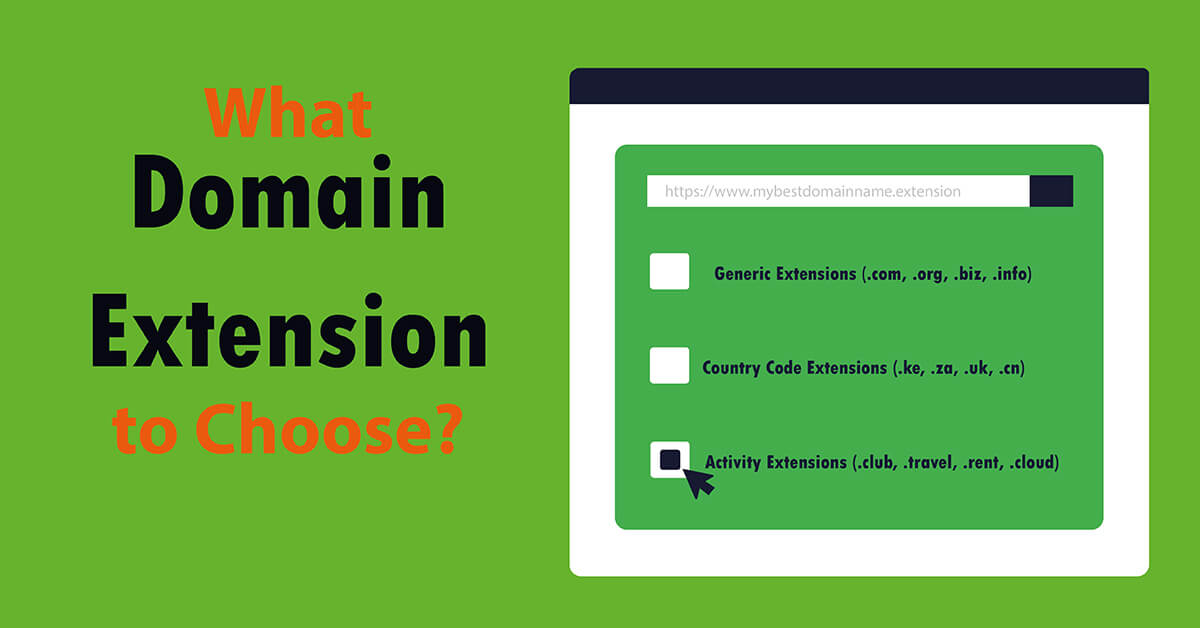
Which Domain Extension to Choose?
A domain extension for any website, from the available extensions, can be used when taking into account: the price, availability or use of the website. To know which domain extension to choose from among the several that are available, consider your target audience, which makes country code extension useful when aiming at country level audiences, while generic domain extensions work best for easy to r
Read Blog