Fix the “Installation Failed: Destination Folder Already Exists” Error
“Destination Folder Already Exists” is a common WordPress error that generally occurs during plugin or theme installation. WordPress shows this error message to prevent a destination folder with the same name and path from being overwritten. The article will highlight ways on how to fix the "installation failed: destination folder already exists" error in WordPress.
When a plugin or theme’s installation fails, it leaves behind an empty destination folder. The same happens when an old plugin or theme’s folder isn’t removed properly due to an interruption. This rogue folder stops WordPress from completing the installation.
| Error code | Installation Failed: Destination Folder Already Exists |
| Error type | Client-side error |
| Error variations | Destination Folder Already Exists |
| Error causes | Incomplete plugin or theme installation |
What Is the Installation Failed: Destination Folder Already Exists Error?
Installation Failed: Destination Folder Already Exists is a common WordPress error that generally occurs when installing a theme or plugin. It usually happens when a previous attempt to install or uninstall a theme or a plugin has failed, leaving behind an empty destination folder.
4 Ways to Fix Installation Failed: Destination Folder Already Exists

Despite the inconvenience, “Destination Folder Already Exists” is a WordPress error with an easy fix ‒ it involves removing the unused destination folder. You can do so by accessing your WordPress website’s server and removing the folder manually.
Note: Back up your WordPress website to avoid losing any data in the event of misconfiguration. Then, pick one of the following four methods to solve the WordPress error.
Fix the Destination Folder Already Exists Error via the WordPress Dashboard
When you install a plugin or a theme manually, WordPress extracts the .zip file in a folder with the same name. If WordPress detects an identical folder with the same path, a comparison between the two will appear.

A warning page that appears on the WordPress dashboard when attempting to install a plugin or a theme using a .zip file
In this case, WordPress will ask for permission to overwrite the old plugin or theme folder. Select Replace current with uploaded and the “Destination Folder Already Exists” error message should be resolved.
Keep in mind that you will only see this warning page if the installation process is done from the WordPress admin area using a plugin or a theme .zip file.
Fix Destination Folder Already Exists via hPanel
Fixing the “Destination Folder Already Exists” error manually involves establishing a connection with your website’s server and removing the folder that’s causing the issue.
Hostinger users can follow these steps to solve the error using hPanel’s File Manager: (this method can be used depending on the hosting service provider, here, it’s Hostinger)
- Navigate to File Manager under the Files section of your hPanel dashboard.

- Access your WordPress files from the root directory. On most hosts, you’ll be looking for the public_html directory. There, locate the wp-content folder that contains all the files of plugins and themes installed on your WordPress website.

- Open either the themes or plugins folder and find the folder that’s causing the issue.

- Right-click on the folder named after the plugin or theme you want to install and click Delete.

- Attempt reinstallation to check whether the error has been resolved.
Fix Installation Failed: Destination Folder Already Exists via cPanel
If your hosting provider uses cPanel, you can access your WordPress files through its File Manager. The process is similar to that of hPanel’s File Manager. Follow the steps below to solve the error.
- Navigate to File Manager located in the Files section of your cPanel dashboard.

- Access the wp-content folder within your root directory (public_html).

- Open either the themes or plugins folder and find the folder that’s causing the issue.

- Right-click on the folder named after the plugin or theme you want to install and click Delete.

- Attempt reinstallation to check whether the error has been resolved.
Fix Installation Failed: Destination Folder Already Exists via an FTP Client
If your WordPress site is hosted on a VPS server, you can access your website files via an FTP client. Using an FTP client for your needs, follow these steps to solve the “Destination Folder Already Exists” error:
- Establish an FTP connection to access the website’s server.
- Navigate to public_html -> wp-content -> plugins or themes and locate the folder that’s causing the issue.

- Right-click on the folder named after the plugin or theme you want to install and click Delete.

- Attempt reinstallation to check whether the error has been resolved.
Conclusion
The “Destination Folder Already Exists” error occurs when WordPress detects an already existing folder with the same name during a theme or plugin installation process. Fortunately, you’ll only need to remove the rogue folder named after the software you want to install to solve this issue.
Source: Hostinger
Is this blog helpful?
0
0
Popular Posts

No Popular Posts Found
We're sorry what you were looking for. please try another way
Popular Categories
Tags
Related Articles
How To Delete WordPress Theme
While installing WordPress themes until you find the right one is a common practice, keeping your theme directory organized by deleting the ones you’re not currently using is highly recommended by WordPress experts. There are multiple ways to delete a theme in WordPress ‒ via the WordPress dashboard or through SFTP. This article will explain these methods along with their respective steps. We will also help you decide which WordPress themes you should keep and which ones to delete.</p
Read Blog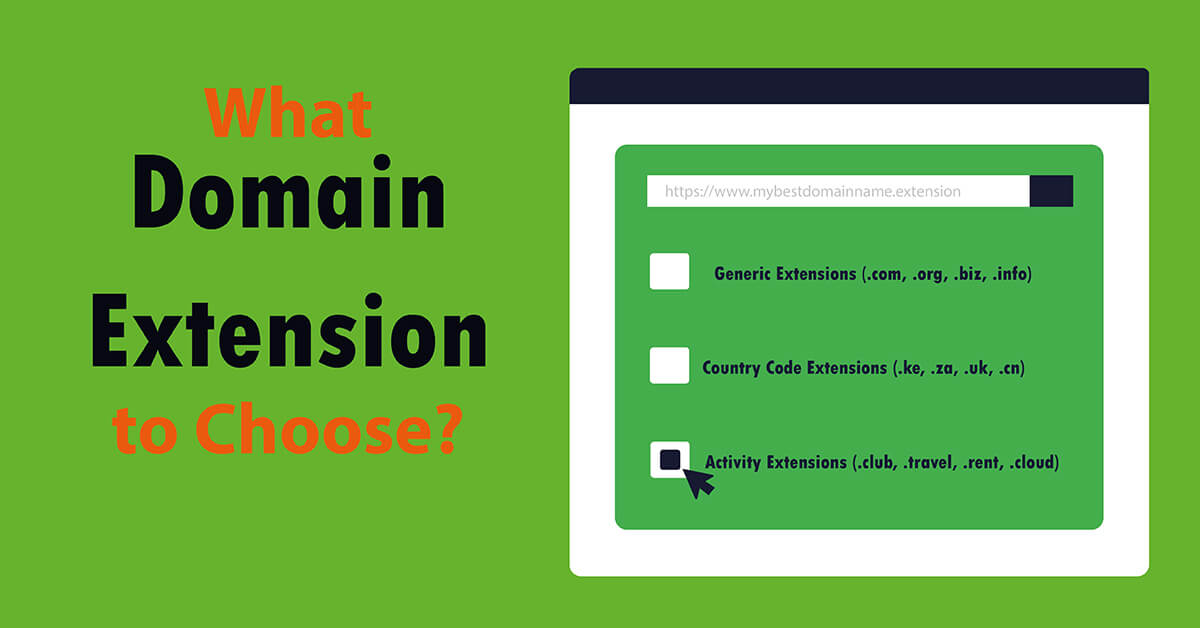
Which Domain Extension to Choose?
A domain extension for any website, from the available extensions, can be used when taking into account: the price, availability or use of the website. To know which domain extension to choose from among the several that are available, consider your target audience, which makes country code extension useful when aiming at country level audiences, while generic domain extensions work best for easy to r
Read Blog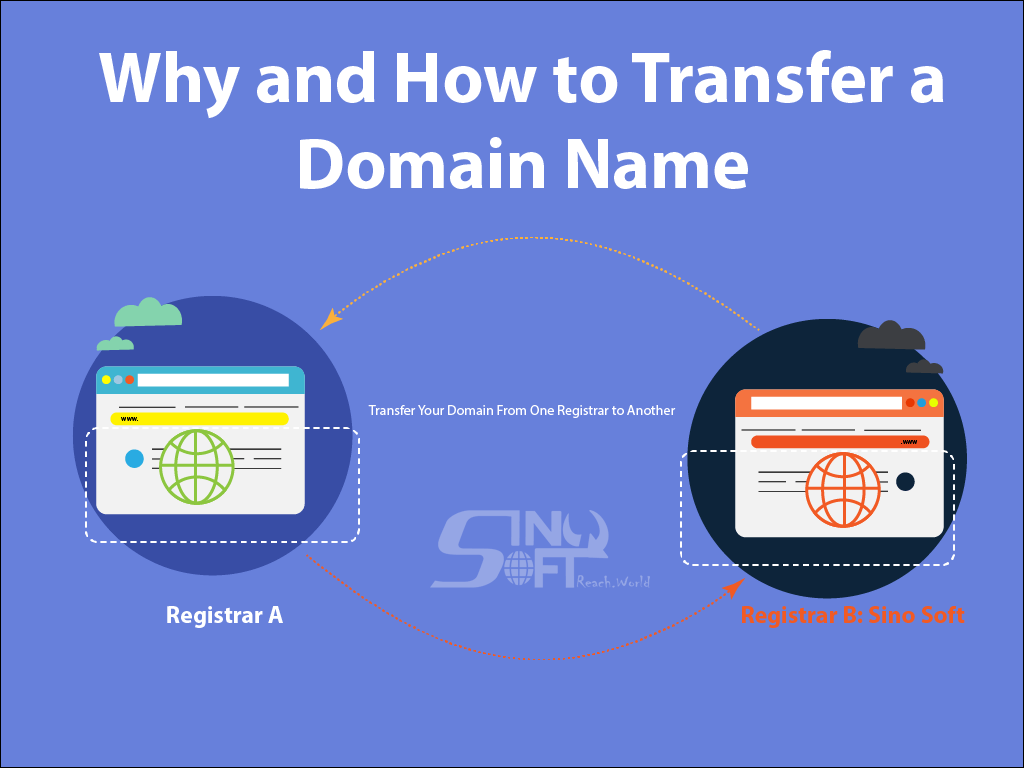
How To Transfer a Domain Name
Do you know how to transfer your domain? Let’s say you already have a great domain name, but you’re not happy with your domain registrar. Don’t worry, you can transfer your domain name to another registrar. So how do you figure out if transferring is right for you? Here are a few things to consider. Reasons for Transferring a Domain Name Not all domain registrars are the same. From the features th
Read Blog