How To Regain Access to Your WordPress Admin Dashboard
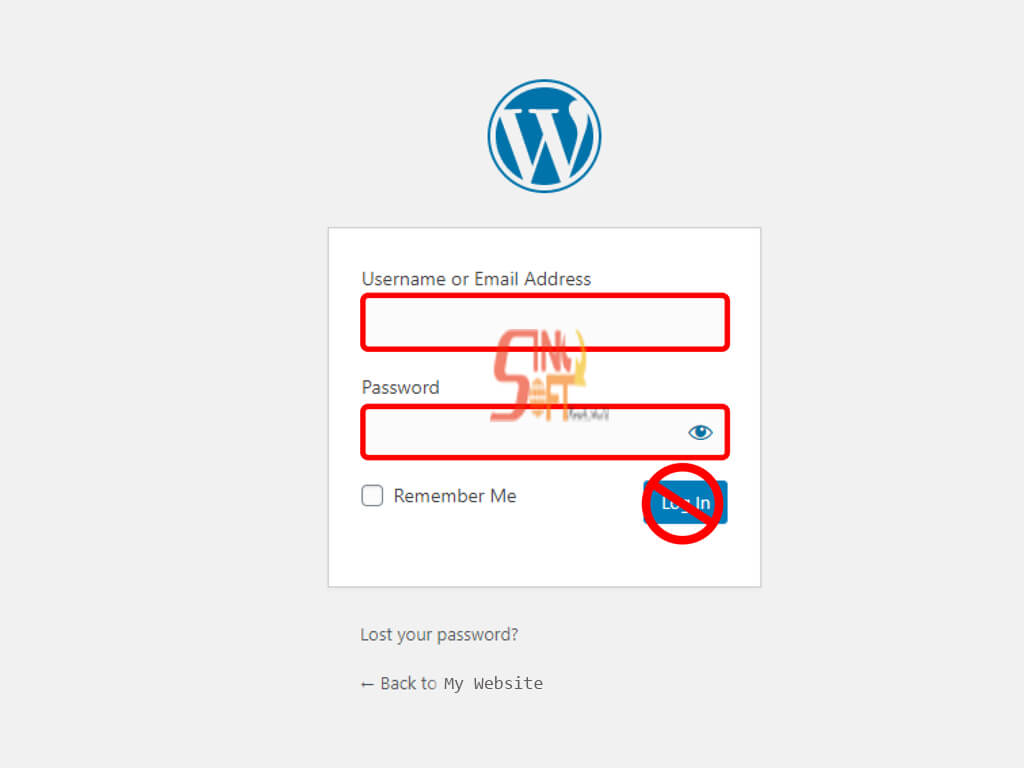
What to do when locked out of your WordPress website, especially if it happens unexpectedly, you don’t know why it happened and don’t know how to fix it. This article will help you understand the various reasons that may cause you to be locked out of WordPress. The possible causes and their solutions so that you can gain access to your website. We will focus on the most common errors and ways to ensure access, making a practical guide on how to regain access to your WordPress Admin dashboard.
Before Fixing the Issue, Do the Following
- Restore a backup: this may help if you’re locked out of WordPress. If you don’t have any backup date, you may proceed.
- Create a backup: this is done before making any changes to your website’s database. This helps return your website to its previous state in case any changes cause issues.
- Install an FTP Client: access your web server through a local computer manually using an FTP client such as FileZilla.
Causes of Getting Locked Out of WordPress and How to Fix Them
Reasons why you would be locked out of your WordPress website may include wrong data inputs, system errors, and cyberattacks. Here, we’re to identify the situations and act accordingly.
Note: Make sure to make a backup of your website before following any of these troubleshooting tips. If the changes and attempts to fix the problem cause any issues, you’ll still have all the site’s critical data at hand. Most if not all the ways on how to regain access to your WordPress admin access are technical solutions and require sufficient understanding of the WordPress platform and navigation.
1. Incorrect Login Credentials
One of the most common reasons for getting locked out of WordPress is entering incorrect login credentials. They typically include a username and a password.
Usernames may not directly reference someone’s real name, and passwords are case-sensitive and usually hidden as we type. That’s why it’s possible to enter an incorrect password or username inadvertently.
How to Fix This?
Carefully type in your credentials, paying special attention to the capitalization. To avoid issues like forgetting or mistyping your passwords, consider using a password management app such as LastPass or 1Password.
If that didn’t solve the issue, try resetting the password by using WordPress’s built-in recovery feature on the login page. Here’s a step-by-step guide:
- Click Lost your password?

- Enter your username or email address in the available field.

- Click the Reset password button.
- WordPress will send a link to your email address to create a new password. Follow the prompt, then log in again with the new credentials.
If you recently migrated your domain to a new server, make sure that the domain is pointing to the correct registrar. Otherwise, your account may be locked out as well.
2. Password Does Not Work and Password Recovery Has Failed
You may forget your password, but there’s also a chance that someone has gained access to your site and changed it.
If the password recovery on the login screen didn’t work or you didn’t receive a password reset email, it can be because your WordPress website is having email issues or you provided the wrong email recovery address.
How to Fix This?
You can resolve this problem by resetting your password from your hosting account control panel.
- Open cPanel.
- Scroll down and locate the Databases section. Select phpMyAdmin.

- On the PHP My Admin page, click Enter phpMyAdmin, and you’ll be redirected to phpMyAdmin’s administration page.
- Select Structure. Scroll down to find wp_users and click it.

- You’ll see the login credentials of the site’s users. Click Edit.

- Type in the new password in the user_pass column to change it, then make other changes as needed.
- Change the Function value of your password to MD5. This is used to add an additional layer of security.

- Press Go to save the changes.
With the newly created password log in into WordPress website.
3. Losing Administrator Privileges
If you can’t log in, your username doesn’t exist, or you can log in but no longer have administrative privileges, it means you’ve lost access to the WordPress admin dashboard.
This can happen if the site owner has revoked your admin rights. Another possible reason is a cyberattack where the hacker has deleted your WordPress administrator privileges.
How to Fix This?
If you have lost admin privileges due to a cyberattack, add a new admin user to your WordPress database through phpMyAdmin. Here’s a guide on how to do it:
- Open cPanel.
- Navigate to Databases -> phpMyAdmin.
- Once you’re on the phpMyAdmin dashboard, click on wp_users, then select Insert.

- Fill out the fields as needed and save the changes. Pick an ID number that isn’t in use in the database, and keep the user_status as 0.

- Note that you’ll need the information from this form later on, especially the ID, user_login, and user_pass. Click Go to save changes.
- Next, head to the navigation panel on the left side of the screen and click wp_usermeta. Select the Insert tab.

- Fill in the columns with the following information:
- unmeta_id – leave it blank as it will be generated automatically.
- user_id – enter the ID number you’ve inserted in step four.
- meta_key – type in wp_capabilities.
- meta_value – insert a:1:{s:13:”administrator”;b:1;}.
Make sure to insert the meta_value correctly. Copy-paste instead of writing it manually to avoid any errors. Once you’re done, click Go.
- Repeat step six to add the second meta value, with a different set of information:
- unmeta_id – leave it blank as well.
- user_id – enter the same ID number you’ve inserted in step four.
- meta_key – type in wp_user_level.
- meta_value – type in 10.
Click Go once again to save the changes.
Now you can log in to WordPress with the new administrator credentials.
4. Too Many Login Attempts
Some site owners use security plugins to limit the number of attempts users can make to log in at one time. It’s a great way to prevent brute-force attacks, but it can also become the reason for you being locked out of your own account.
How to Fix This?
The login form will work again after some time, but if you can’t wait, you can opt to deactivate the plugin through an FTP client. Here’s how to do it:
Set up an FTP client through cPanel.
Log in to the FTP server and head to the Remote Site window.

Open the domains -> public_html folder, scroll down and find the wp-content folder. Select plugins.

Here, we are using Limit Login Attempts Reloaded as our security plugin. Right-click the limit login attempts plugin folder and select Rename.

Type in deactivate_ before the plugin’s name.

Now, the plugin is disabled, and you can log in right away.
Note: Keep in mind that this is a solution for when you need to access the dashboard immediately and can’t wait for the login form to work again. It’s strongly recommended reactivating the security plugin to keep your WordPress site secure.
Once you have successfully accessed the WordPress dashboard, go back to the FTP client and rename the deactivate_limit-login-attempts folder back to its original name. In this example, we rename it back to limit-login-attempts.

After renaming the plugin folder, navigate to your WordPress dashboard and the Plugins tab. Check if the plugin is activated – if not, simply click Activate.
5. Incorrect WordPress URL
Changing your site’s domain name may also cause you to be locked out of WordPress. If you recently made such a change, check if there’s any inconsistency between your site’s URL and the one stored in the MySQL database.
How to Fix This?
The MySQL database stores all of WordPress data, including site URLs. So, if you want to update your database with the correct URL, use phpMyAdmin to make the changes and solve the problem.
6. Error Establishing Database Connection
A database connection error affects your entire WordPress site. It makes you unable to connect to the database, as in addition to storing URLs, it also stores all your site information, including content, user accounts, and permissions.

This usually happens when there’s something wrong with the server or the database. Causes may include:
- Incorrect database login credentials. Keep in mind that the WordPress database uses different login information from your hosting panel. If there is any change to your database username and password, the old login information stored in your WordPress files will be invalid.
- Corrupted database. Issues like plugin failures and incompatible themes can cause corrupted database tables or missing information. When any database information is deleted or corrupted, it will result in an error.
- Database server error. Sometimes the problem comes from your web hosting end. For example, a sudden surge of traffic or permission issues can make your database unresponsive. This usually happens in a shared hosting environment where multiple websites use the same resources.
- Core files corruption. WordPress core files define how your site works and functions. Many reasons can lie behind corrupted files, from faulty plugins and themes to issues when transferring via an FTP client. When modified incorrectly, the core files can also get corrupted and cause failure in the database.
How to Fix This?
There are several solutions for database connection errors:
- Activate the built-in WordPress repair configuration
- Fix the corrupted files.
- Check the database login settings through the control panel on your hosting account.
- Create a new database
If all the previous methods still couldn’t restore the connection, try to disable the plugins you’ve recently installed before the incident. Follow the steps in section four to deactivate the plugin.
Database errors can also be caused by a troubled database server. This typically happens on a shared host, where the number of permitted concurrent connections is limited. Simply contact your hosting provider to check if the error is on their end, and ask them to fix it.
7. White Screen of Death (WS)
The white screen of death is the blank white page you may see when trying to access the WordPress dashboard. The reasons behind this problem vary from bad plugins to insufficient website memory.
How to fix this?
Here are some options to solve the white screen of death:
- Increase your site’s memory limit – a script may have exhausted the memory and quit in the middle. Increase PHP memory available to WordPress to allow script to use more memory to finish its job.
- Disable bad plugins – disable recently installed plugins to check if a plugin is causing the issue. Since you can’t access the dashboard, use an FTP client to disable your plugins manually.
- Install a default theme via phpMyAdmin – replace current theme with the default WordPress theme as it helps with fixing the functions.php file.
- Enable Debug Mode to Catch Errors in WordPress – this will allow you to see what type of errors are being output.
- Clear WordPress Cache - a caching plugin may be causing the white screen, simply empty your website cache.
- Fix Longer Articles – if the white screen of death is on a very long post or page, the trick is to increase PHP’s text processing capability by increasing the recursion and backtrack limit
8. Parse Error: Syntax Error
If you see a message that says parse error: syntax error when you try to access your website, incorrect code is the cause of the issue. This type of error is very common, as even a single misplaced letter can trigger it. It appears when the PHP interpreter detects a missing element, mostly a missing curly brace “}”. Fortunately, it can also be fixed easily.
How to Fix This?
Here’s what you can do to fix a syntax error:
- Trace the source of error – check if the code changes you’ve made recently are correct and use proper syntax.
- Fix the bad code via an FTP client – repair a syntax error on your WordPress website by determining the corrupted file and fixing it via the file manager.
Note: To determine the source of the error, open your website on a browser and wait for the syntax error message to appear. It will show the full path of the error.
9. Issues with Plugins or Themes
A recent addition of a new plugin or theme may also lead to you being locked out of WordPress. The reason might be the .htaccess file of the plugin or theme being corrupted or misconfigured.
The .htaccess file is a configuration file that contains essential server instructions. It is used to enable or disable various functionalities and features, including applying access restrictions to your website.
How to fix this?
Fix the corrupted .htaccess file by using an FTP client:
- Log in to the FTP server, then head to the Remote site window.
- Open domains -> public_html and scroll down to find the .htaccess file.

- Once you find it, right-click it to rename it to htaccess_old.

- Go to your WordPress dashboard, navigate to Settings -> Permalinks.

- You don’t need to change anything on the Permalink settings page, just hit the Save Changes button. This will generate a new .htaccess file automatically.
- Check if the new .htaccess file is already generated by going back to the FTP client directory and refreshing the screen.

- Once you see the new .htaccess file in the directory, delete htaccess_old.

Conclusion
Here’s a quick recap of the issues causing you to be locked out of your WordPress website as listed in this article and how to fix them:
- Incorrect Login Credentials. Use WordPress’s built-in password recovery feature. Remember to type in your password carefully or use a password manager app for secure and hassle-free logins.
- Password Doesn’t Work & Failed Password Recovery. If the password recovery method didn’t work, create a new password through your hosting provider’s control panel.
- Losing Admin Privileges. Create a new admin user in the database through phpMyAdmin.
- Too Many Login Attempts. To log in right away, use an FTP client to disable the security plugin that prevents you from logging in.
- Incorrect WordPress URL. Update your database with the new URL through phpMyAdmin.
- Error Establishing a Database Connection. Check if there’s something wrong with your database through your hosting account’s control panel, or disable bad plugins and themes.
- White Screen of Death. Increase the site’s memory limit, disable bad plugins, and set the site’s theme to default.
- Parse error: syntax error. Determine the source of the error and fix it via an FTP client.
- Issues with plugins or themes. Fix the corrupted .htaccess file via an FTP client.
Is this blog helpful?
0
0
Popular Posts
No Popular Posts Found
We're sorry what you were looking for. please try another way
Popular Categories
Tags
Related Articles

How to Improve Website SEO.
How do you Improve your website's SEO? In today's digital Space, having a well-optimized website is crucial for attracting organic traffic and improving your online visibility. Search Engine Optimization (SEO) plays a vital role in achieving these goals. In this article, we will explore effective strategies and techniques to e
Read Blog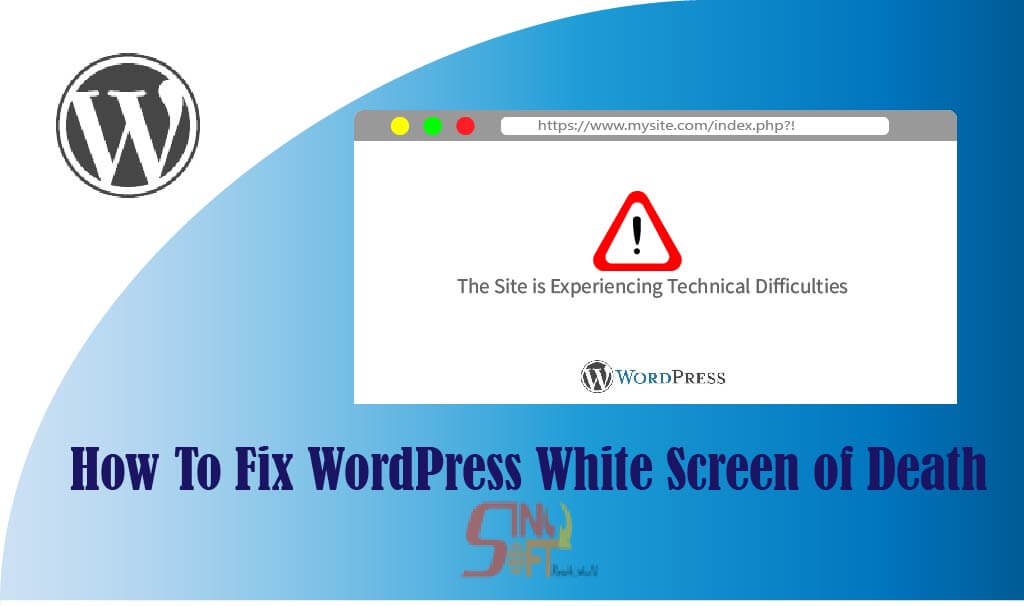
How to Fix WordPress White Screen of Death
The WorPress white screen error is one of the most common, most frustrating WordPress error. Most of the time, there is no error message, and you’re locked out of your WordPress website. Also, the error can affect a certain part of your website like a single page or post, or admin area. Here, we’re going to show how to fix the white screen error by looking at varied solutions. Note: Before making any changes to your website, make sure you have a ba
Read Blog
Can Anyone Register a .CO.KE Domain?
Can anyone register a .CO.KE domain? Am I Eligible to buy a .co.ke domain name? Yes, if you have the following: a) Desired domain name b) Name and contact information (E-mail and Physical Address) c) Desired registration term d) Amount or fee to acquire the domain name e) A Kenyan certified domain registrar What do I need a dom
Read Blog