WordPress Lazy Loading: How to Implement It on Your Site
If your WordPress website heavily relies on visual content, you may want to add the lazy loading functionality to it. This WordPress feature helps improve a website’s page speed and performance, making it essential for your SEO efforts.
This article will explore how lazy loading works along with its pros and cons. You will also learn how to implement it on your website and the ways to optimize its usage for better results.
What Is Lazy Loading?
It’s functionality which allows a website to only load the images that are visible to the user. It helps the site maintain a fast load speed by not downloading images outside of the viewport.
How Does WordPress Lazy Loading Work?
When a user visits a WordPress website, their browser downloads all the images within the web page at once. For pages with many high-resolution images, this process can reduce the load time significantly, harming your site performance.
Adding lazy loading to your website prompts it to only download the images that are visible on the user’s screen. The rest of the media files are replaced by a placeholder image and only loaded when the user scrolls further down the web page.
Pros and Cons of WordPress Lazy Loading
If you’re still wondering whether you should implement image lazy loading in WordPress, here are the pros and cons of the feature:
Pros:
- Reduces bandwidth usage, lowering hosting costs.
- Improves site speed, making visitors’ browsing experience better.
- Boosts the mobile experience.
- Optimizes the Largest Contentful Paint score
- Improves SEO efforts, increasing your site’s search rankings.
Cons:
- Causes content buffering, hurting the loading speed.
- Slows down quick scrolling.
3 Methods How to Add WordPress Lazy Loading to Your Site
There are three ways to implement lazy loading on your WordPress site. It’s recommended to pick the one that best suits your situation and needs.
1. Upgrade to WordPress 5.4 or Higher
WordPress 5.4 and higher versions include lazy load images by default. Updating your WordPress to the newest version will automatically enable lazy loading.
Despite being the easiest method, it doesn’t allow you to configure which images to lazy load. Consequently, your website may overuse the feature, manifesting the aforementioned cons.
Another factor to consider is the different nature of the lazy loading feature in each WordPress version. Recently, WordPress posted that WordPress 5.9 implements refinements to solve the issues with poor Large Contentful Paint scores of older versions. That means websites running on older WordPress versions don’t get the same benefits as those using WordPress 5.9.
2. Enable Native Lazy Loading Through the Browser
Popular browsers like Chrome, Firefox, and Opera support native image lazy loading. You only need to add the loading attribute to the targeted images and videos to enable it automatically.
In native WordPress lazy loading, the loading attribute supports these three values:
- Auto ‒ triggers default lazy loading, which is the same as not including a loading attribute.
- Lazy ‒ distributes the loading of the assets until each reaches the specified distance from the viewport.
- Eager ‒ loads all the assets as soon as the page loads, regardless of their location.
Here’s an example of how to use it:

This method is ideal for lazy loading certain images, giving each a loading attribute that dictates their time of appearance in the viewport. However, it can take some time to lazy load individual images, especially if your website has a lot of media files.
3. Install a Plugin
Since not all browsers support lazy loading for images and videos, the second method might not work all the time. You can mitigate this issue by installing a WordPress lazy loading plugin. This method gives you more control over which images to lazy load without coding.
The following are the best plugins for lazy loading to choose from, accessible via the WordPress plugin directory.
A. Optimole

One of Optimole’s plus points is that it supports all image types, including AVIF. This freemium lazy load plugin provides image optimization and scaling to fit them on visitors’ devices, ensuring optimal user experience.
When it detects a slower network, Optimole gives you the option to downgrade the image quality. Additionally, save storage space by storing images in Optimole’s cloud library.
The free plugin lets you optimize images for up to 5,000 monthly visits. Purchasing the Pro plan allows you to lazy load images for 25,000 monthly active visitors and more. Images in both plans are served via the AWS Cloudfront CDN.
B. Smush

Smush is a popular image optimization plugin that supports lazy loading. It’s compatible with popular themes, page builders, and media library plugins. Additionally, it lets you save the plugin’s settings in unlimited configs and apply them in a few clicks.
Other useful features include incorrect image size detection, multisite support, and image compression tools. Upgrading to Smush Pro allows you to optimize large images without size limitations, backup original images, and access other WPMU Pro plugins.
C. a3 Lazy Load

a3 Lazy Load is a free mobile-oriented lazy loading plugin. It’s fully compatible with WordPress 5.9 and a number of popular tools, including WebP and AMP plugins.
Besides offering basic features of image lazy loading, a3 Lazy Load also lets you lazy load videos – including embedded videos in pages, posts, custom post types, and widgets. Lazy load effects and the option to load scripts from the header or footer are also available.
Other notable features include multisite support, WebP image support, and iframe lazy load – it applies to iframes that the WordPress core doesn’t load, such as Google Maps and embedded media.
WordPress Lazy Loading Tips
The key to getting the most out of lazy loading is to use it properly. Here are a few tips for performing lazy loading on your WordPress site:
- Don’t lazy load images above the fold. As images placed at the top of the page are visible upon loading, lazy loading them has no benefit.
- Choose appropriate placeholders. We recommend using a solid, dominant color or a low-quality image as a placeholder for your images.
- Add buffer time for image load. This way, your images are ready right before entering the visitors’ viewport, eliminating any waiting time.
- Define the dimensions for image containers. Doing so will help avoid sudden layout shifts, making your web page look tidy upon loading.
- Implement lazy loading on long pages only. Long pages include those that take more than two scrolls to reach the end and have more than five images below the fold.
Conclusion
Lazy loading images in WordPress allows you to give visitors a better browsing experience. Besides improving site speed, this feature also reduces your bandwidth usage. Overall, it contributes to your SEO efforts for higher search rankings.
Is this blog helpful?
0
0
Popular Posts

No Popular Posts Found
We're sorry what you were looking for. please try another way
Popular Categories
Tags
Related Articles

Sino Soft Limited Wins Best Website Design and Development Firm Award
We are thrilled to announce that Sino Soft Limited has been awarded the prestigious title of Best Website Design and Development Firm 2024 in the Innovation in Business category at the MarTech Awards! This recognition is a testament to our team's dedication to crafting exceptional websites and development solutions for our clients. The Driving Force At Sino
Read Blog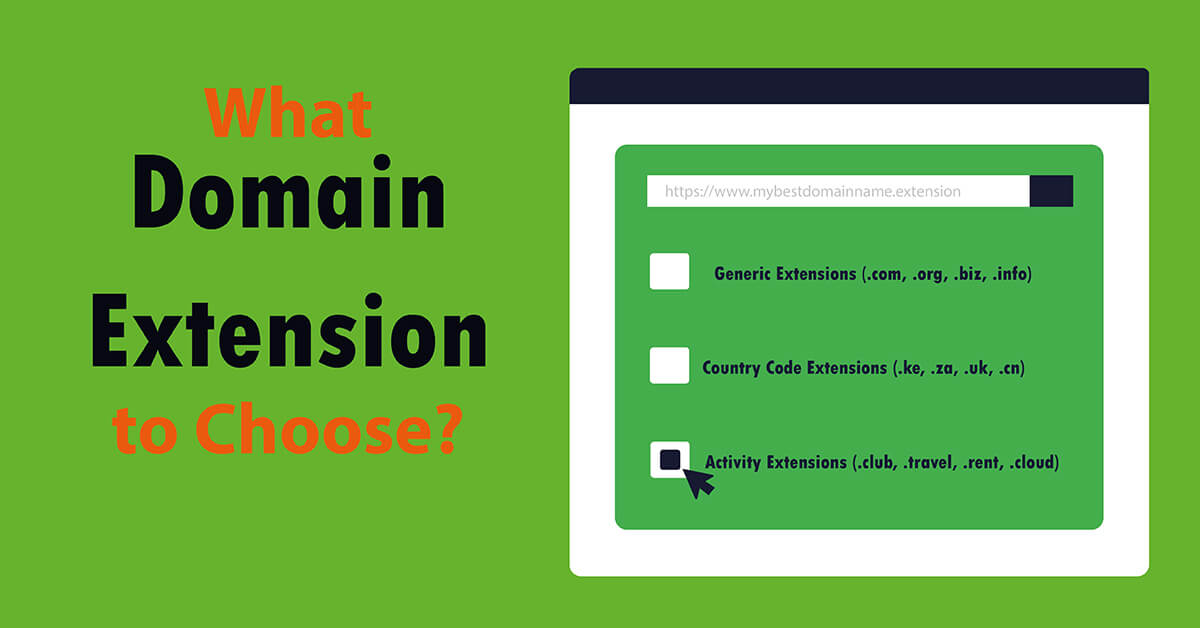
Which Domain Extension to Choose?
A domain extension for any website, from the available extensions, can be used when taking into account: the price, availability or use of the website. To know which domain extension to choose from among the several that are available, consider your target audience, which makes country code extension useful when aiming at country level audiences, while generic domain extensions work best for easy to r
Read Blog
How to Create an Eye-Catching Web Developer Portfolio: An In-Depth Guide
A stand-out portfolio website is essential for landing a job as a web developer. However, creating one isn’t easy, even for experienced web developers. The steps outlined will help on how to create an eye-catching web developer portfolio in-depth. Whether you’re looking to build your first online portfolio or improve an existing one, this article will guide you through the entire process. We’ll cover the main components of a web developer portfolio and the steps to make it appealing t
Read Blog